
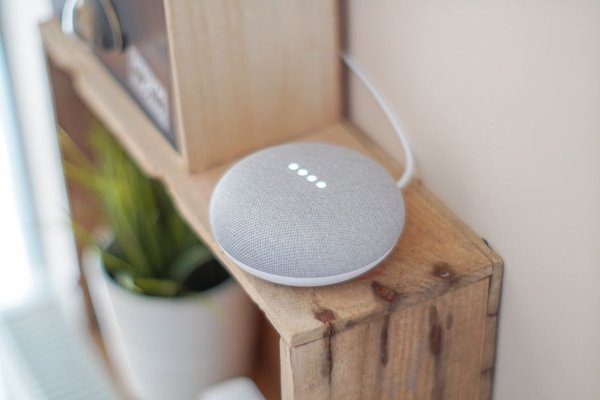
A smart home feels much less clever when the hallway light responds to the wrong command or a new plug never appears in the app. A reliable Google Home smart home setup starts with three decisions: which devices belong in the system, how to organize them, and what you actually want them to do together. Get those right, and everyday control becomes pleasantly ordinary.
Start With Devices That Work Together
Google Home can manage compatible lights, outlets, thermostats, speakers, TVs, cameras, and other equipment. Start with one room and one useful task rather than buying a houseful of gadgets. A smart bulb and a smart plug provide an inexpensive way to learn naming, voice control, and basic automations.
Check for the “Works with Google Home” badge or Matter logo before buying. Works with Google Home products frequently connect through a manufacturer’s account and cloud service. Matter uses a shared smart-home standard, but Google Home still needs to support that specific device category and its controls.
Understand Hubs, Wi-Fi, and Thread
A Google Nest speaker or display makes voice control convenient, but many devices can be managed through the Google Home app without one. Matter is different: Google Home requires a compatible Matter hub. Matter-over-Thread accessories additionally need a Thread border router, which some Google hubs have built in.
For Matter pairing, keep the device’s setup code handy and check that IPv6 is enabled on your home network. Also confirm whether the accessory uses Wi-Fi or Thread. Choosing the right hub before purchasing additional Google smart devices avoids expensive surprises.
Set Up Google Home and Connect Each Device
Install the latest Google Home app on Android or iPhone, sign in, and create or select your home. Connect to your secure home Wi-Fi network and grant the phone permissions required during setup. Follow each device’s instructions because installation differs by manufacturer.
Link Google and Third-Party Products
For Google speakers, displays, and supported direct-setup products, choose Add in the Home app and follow the pairing prompts. For many third-party devices, complete setup in the manufacturer’s app first. Then choose the option to link a service or Works with Google and authorize that account.
For a Matter accessory, use the Matter setup option and scan its QR code or enter the numeric pairing code. Make sure your compatible Google Home hub is online. The accessory may need pairing mode enabled or a reset if it was connected to another system.
Open each new device’s tile and test a basic action: switch a lamp on, dim a bulb, or change a thermostat setting. Some specialized controls remain available only in the manufacturer’s app. This test shows what your connected home setup can actually do before you design routines around it.
Use Rooms to Make Commands More Natural
Room assignments help Google interpret requests such as “turn off the kitchen lights” and make devices easier to locate in the app. Create rooms based on names your household already uses, such as Kitchen, Living Room, Hallway, and Main Bedroom.
To change placement, open All devices, press and hold a device tile, and find Placement under Settings or Device information. Select a room or create a custom one. The exact menu may differ by product or app version.
Give Devices Short, Distinct Names
Try names such as “Ceiling Light,” “Floor Lamp,” and “Desk Plug.” Avoid nearly identical labels, numbers, or repeating the room name in each device name; its room assignment supplies that context. Say the names aloud to see whether another person could identify them easily.
Imagine two living-room lights. Assign both to Living Room, then name them “Floor Lamp” and “Ceiling Light.” You can request all lights in the room or select one fixture. For more examples, explore our guide to smart home voice commands and our smart home compatibility guide.
Make Google Home Automations Useful, Not Complicated
Google Home automation connects actions to a starter so you don’t need several separate commands. In the Automations section, create a household automation, name it, choose a starter, add supported conditions if helpful, and select actions. The available options depend on your devices and household permissions.
Starters can include schedules, voice phrases, sunset, presence, or certain device events. Conditions determine whether the automation should run; actions might adjust lights, switch compatible devices, or manage media. The newer automation editor makes these parts easier to distinguish.
Try an Evening-Lights Scenario
Suppose your apartment has an entryway bulb and two living-room lights. Create an automation called “Evening Lights” with sunset as its starter. Add actions to illuminate the entryway and dim the living-room lights to a comfortable level. If supported, set a condition so it runs only when someone is home.
Run it manually, then check whether the schedule works as expected. Avoid switching heaters or other potentially hazardous appliances on unattended. Start with this single scene and a simple bedtime routine before building more ambitious Google Home routines.
Our collection of smart home automation ideas offers other practical possibilities, but don’t add triggers merely because they’re available. A routine that household members understand and can easily override is more valuable than one with a complicated chain of conditions.
Share Access and Troubleshoot Problems
Invite household members through Google Home instead of sharing a Google Account password. Choose access levels carefully: administrators can manage more settings and people, while members can have limited permissions. Review access if someone no longer lives in the home.
If a device disappears, check its power, network connection, and selected home. Open the manufacturer’s app, install available firmware updates, and reconnect or resync the linked service when needed. If a voice command selects the wrong fixture, simplify names and verify room assignments.
Remember that automations may rely on internet connections, working services, and supported device functions. They are convenience features, not replacements for alarms or other safety-critical systems. Keep your accounts secured and test important routines after changing devices.
Frequently Asked Questions
Can I use Google Home without a Nest speaker?
Yes. You can control many compatible devices through the Google Home app. A compatible speaker or display enables hands-free voice control, while Matter accessories need an appropriate Google Home hub.
Does every Matter device work with Google Home?
Not with every feature. Check Google’s supported device types and controls before purchasing. Matter devices using Thread also need a compatible Thread border router.
Why does my smart light show as offline?
Check power and Wi-Fi, then see whether the manufacturer’s app can reach the light. Update firmware and reconnect the linked account if needed. For Matter devices, check hub connectivity too.
How are personal and household automations different?
Personal automations relate to an individual’s account and preferences. Household automations are built around shared home devices, with management controlled by home-member permissions.
Build Around Everyday Habits
A well-planned Google Home smart home setup doesn’t need a huge device collection. Choose compatible equipment, assign sensible rooms, and create a few dependable automations. When the system responds the way everyone expects, expanding it feels like an improvement rather than another troubleshooting chore.
